

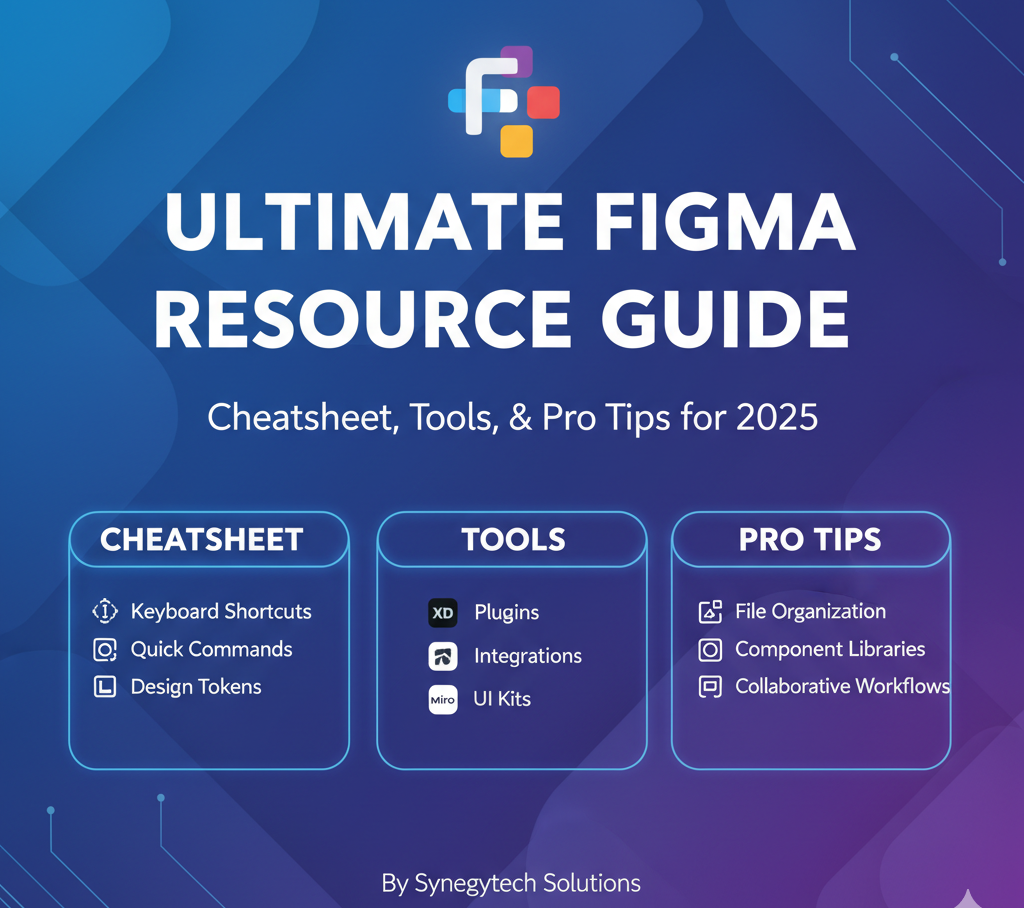
Table of Contents
- Overview & Modes
- Essential Tools & Their Uses
- Keyboard Shortcuts — Quick / Core / Advanced
- Plugins & Extensions — must-have + AI ones
- Figma AI / Prompt-to-Design Features (2025)
- Example AI Prompts for Figma
- Workflow Tips, Best Practices & Hidden Features
- New Features / Updates to Watch
- Resources / Further Reading
1. Overview & Modes
Figma is a collaborative, cloud-based UI / UX / interface / prototyping tool. You work in the browser or desktop app. Key “modes” or contexts:
- Design Mode – create frames, shapes, components, styles, layout, interactions
- Prototype Mode – set up interactions, transitions, flows between frames
- Dev Mode / Inspect – view measurements, CSS / code snippets, download assets, tokens / styles
- FigJam / Whiteboard mode – collaborative sketching / brainstorming
- Figma Sites / Figma Make – building prompt-to-app or web experiences (emerging)
In 2025, Figma has embedded more AI features into all modes (Design, FigJam, Slides, Sites, etc.). (Figma Help Center)
Also note: Figma is increasingly integrating “prompt-to-app” capabilities via Figma Make, where you can convert text prompts into prototypes / app experiences. (Figma)
2. Essential Tools & Their Uses
Here’s a reference list of Figma’s core tools / UI elements and typical use cases:
| Tool / Feature | Shortcut(s) (Mac / Win) | Purpose / Use |
|---|---|---|
| Move / Select | V | Select, move, drag objects |
| Frame / Artboard | F | Create frames (containers or screens) |
| Rectangle / Shape | R | Draw rectangles (foundation of UI layout) |
| Ellipse / Circle | O | Draw circles / ovals |
| Line | L | Draw lines (borders, separators) |
| Pen | P | Draw vector paths / custom shapes |
| Pencil | Shift + P | Freehand vector drawing |
| Text | T | Type text on canvas |
| Slice | S | Export slices / portions of design |
| Comment | C | Add comments for feedback / review |
| Scale | K | Scale objects proportionally |
| Hand / Pan | H | Pan across canvas |
| Eyedropper / Pick Color | I / Ctrl + C | Sample colors from elsewhere |
| Section | Shift + S | Organize frames into visual sections |
| Resources / Assets | Shift + I | Open assets / components panel |
| Zoom In / Out | Cmd/Ctrl + + / – | Zoom in or out |
| Zoom to 100% / Fit / Selection | Shift + 0 / Shift + 1 / Shift + 2 | Quickly scale view to specific content |
| Show / Hide UI | Ctrl + \ | Toggle full UI on/off for distraction-free view |
| Show / Hide Layout Grids | Ctrl + G | Toggle layout / grid overlays |
| Pixel Grid / Snap | Ctrl + ‘ | Show pixel grid |
| Show Outlines | Ctrl + Y | Outline view (no fills) |
| Copy / Paste / Duplicate | Cmd/Ctrl + C, V, D / Option + drag | Standard editing actions |
| Group / Ungroup | Cmd/Ctrl + G / Cmd/Ctrl + Shift + G | Group elements or undo grouping |
| Lock / Unlock | Cmd/Ctrl + Shift + L | Prevent moving or editing locked items |
| Hide / Show Selection | Cmd/Ctrl + Shift + H | Temporarily render selection invisible |
| Deep Select | Ctrl + click | Select nested / deeper layers |
| Parent / Child layer navigation | Enter / Shift + Enter | Jump into or up layers |
| Next / Previous sibling | Tab / Shift + Tab | Move through sibling items in layer tree |
(Note: above shortcuts combine both Mac and Windows; in Mac replace Cmd with ⌘, etc.)
There are far more (119+ official) shortcuts, and you can find printable lists. (QuickRef.ME)
3. Keyboard Shortcuts — Quick / Core / Advanced
Here’s a “cheat / quick reference” you’d want pinned or memorized:
Core / Essential (used daily)
- Ctrl / Cmd + / → Command palette / search menu
- V → Move / Select tool
- F → Frame tool
- T → Text tool
- R → Rectangle
- O → Ellipse
- L → Line
- P → Pen
- Shift + P → Pencil
- Space + drag → Pan
- + / – → Zoom in / out
- Shift + 1 / 2 / 0 → Zoom to fit / selection / 100%
- *Ctrl + * → Show / hide UI
- Ctrl + G → Show / hide layout grids
- Ctrl + Y → Show outlines
- **Ctrl + ‘ ** → Pixel grid
- Cmd/Ctrl + C / V / D → Copy / Paste / Duplicate
- Cmd/Ctrl + G / Shift + G → Group / Ungroup
- Cmd/Ctrl + Shift + L → Lock / Unlock
- Cmd/Ctrl + Shift + H → Hide / Show
- Enter / Shift + Enter → Drill into / out of nested layers
- Ctrl + click → Deep select
- Tab / Shift + Tab → Sibling layer navigation
- Cmd/Ctrl + B / I / U → Bold / Italic / Underline
- Cmd/Ctrl + Shift + V → Paste and match style
- Alt + , / . → Letter spacing adjustment
- Alt + Shift + < / > → Line height adjust
Advanced / Less Known but Powerful
- Copy / paste properties only: Ctrl + Alt + C / V (Mac: Cmd + Option + C / V) (Designlab)
- Swap fill / stroke
- Use Outline Stroke
- Boolean operations quickly: Union / Subtract / Intersect / Exclude
- Distribute / align spacing
- Smart selection (hold shift, drag)
- Constraints + auto layout toggles
- Use “Hide others” (Option / Alt + click)
- Use “Isolate mode”
- Plugins / quick actions via right-click or quick search
- Multi-cursor text editing (when available)
- Layer search / filters
You can refer to full cheat lists like the one at QuickRef: “Figma Cheat Sheet & Quick Reference.” (QuickRef.ME)
4. Plugins & Extensions — Must-Have + AI Ones
A good plugin ecosystem is one of Figma’s strengths. Here are categories, examples, and when to use them.
Categories of plugins
- Design / UI helpers (icons, illustrations, gradients)
- Content / Copy / Placeholder generators
- Automation / batch tasks
- Design system / token management
- AI / generative tools
- Export / handoff / dev tools
- Animation / motion
Top & Recommended Plugins (2025)
Here are some highly recommended ones:
| Plugin | Use Case / Benefit |
|---|---|
| Magician | Generate text copy, icons, image suggestions via prompts within Figma. (UX Design Institute) |
| Automator | Automate repetitive tasks, workflows, batch operations. (UX Design Institute) |
| Magic Patterns | Generate complete UI patterns / layouts from text prompts. (UX Design Institute) |
| Blush | AI / illustrated character / scene generator integrated in Figma. (UX Design Institute) |
| Builder.io | Assist with code / bridging between design and dev. (UX Design Institute) |
| Content Reel | Maintain content placeholders / text / images easily. |
| Lorem Ipsum / Placeholder | Quick dummy content insertion. |
| Figmotion / Anima / Motion plugins | Add UI animations or micro-interactions. |
| Figma to HTML / CSS export | Generate front-end code from designs. |
| Design Tokens plugins (e.g. Style Dictionary export) | Manage and sync design tokens. |
| Iconify / Icon plugins | Quickly insert icons from libraries. |
| Remove BG / image background tools | Cut out backgrounds inside Figma (native AI features also cover this). (Figma) |
| Rename It | Batch rename layers in patterns. |
| Stark | Accessibility checks (contrast, color blindness). |
| Similayer | Select / edit similar layers by properties. |
| Swap Fill & Stroke | Quick swapping of fill and stroke. |
| Zapier integration / Automation | Connect Figma with external tools. (Recently added) (Figma) |
Keep browsers open to Figma’s plugin community; new ones get added frequently. (Muzli – Design inspiration hub)
5. Figma AI / Prompt-to-Design Features (2025)
In 2025, Figma is embedding AI more deeply. Here are the major AI / generative features and how they work / where they apply:
Key AI Features / Tools
- Figma Make: A prompt-to-app / prompt-to-prototype tool. You type a description, it generates a working UI / interactive prototype. (Figma)
- Edit Image AI: Edit / replace image content using AI (e.g. replace background, change elements) directly in canvas. (Figma Help Center)
- Autosuggest Text: As you type, suggested completions / improvements for copy. (Figma Help Center)
- Replace Content AI: Let AI swap or suggest content (text, images) contextually. (Figma Help Center)
- Rename Layers Automatically: AI helps you name layers based on content / context. (Figma)
- Remove Backgrounds / Image Editing: One-click removal of image backgrounds. (Figma)
- Search with a visual / image / selection: Use an image as input to search or generate related content. (Figma)
- “Copy Make previews as design layers”: Convert the generated UI preview into editable Figma design layers. (Figma)
- Workspace-level AI toggle: Admins can enable/disable AI features per workspace. (Figma)
- Zapier integration: Connect Figma events to trigger external automations. (Figma)
- Code Connect UI (beta): Map Figma components / layers to code repo / files. (Figma)
- MCP / AI agent connectivity: Figma exposes its Model Context Protocol (MCP) server so AI agents and coding tools (e.g. Copilot, Cursor) can access design data and contexts more directly (for integration between design ⇆ code) (The Verge)
These features let you stay in the flow — you don’t have to leave your canvas to generate or edit content, layouts, prototypes. (Figma Help Center)
When & Where to Use AI Features
- Early ideation: generate layout / screen ideas rapidly
- Filling content / copy: when you need placeholder or initial text
- Image editing / replacement: refine visual assets without external tools
- Prototyping: build interactive flows via prompt rather than manual linking
- Code bridging: exporting / mapping design → code
- Batch tasks: renaming / organizing layers
But always treat AI-outputs as drafts. You’ll need to refine for branding, accessibility, consistency, user research validation.
6. Example AI Prompts for Figma
Here are practical prompt templates you can try with Figma’s AI (Make, Magician, etc.). Tweak them to your brand / product:
| Prompt | Use / Effect |
|---|---|
| “Create a modern login screen for a mobile banking app, with branding colors #0055FF and #FFF, include header, input fields, and a CTA button.” | Generates a complete UI screen |
| “Suggest 3 alternative home screen designs for a health app with space for daily metrics and activity feed.” | Generates multiple layout variants |
| “Write microcopy for button: ‘Continue’, ‘Skip’, ‘Back’ in a friendly tone.” | Generates UI copy |
| “Rewrite this overlay text to be more concise: ‘Would you like to receive notifications about latest news and updates?’” | Replace content AI / text edit |
| “Generate 5 user profile picture ideas (avatars) matching a tech / modern style.” | AI image / illustration insertion |
| “Convert this Figma frame into a responsive prototype with mobile and tablet versions.” | Prompt-to-prototype / adaptive layout |
| “Remove background from this product image and replace with a subtle shadow.” | Image editing / background removal |
| “Rename all layers in this frame logically (e.g. header, input_name, submit_button).” | Auto layer naming |
| “Produce an onboarding flow of 4 screens for a meditation app, include illustration + short text + skip & next buttons.” | Multi-screen prototype generation |
| “Suggest color palette (5 colors) that complements #2B2D42 for UI design.” | Color palette generation |
Prompt Tips / Best Practices
- Be specific: mention brand colors, number of screens, components
- Use context: refer to Figma features (e.g. “convert to prototype”, “editable layers”)
- Iterate: refine prompt based on output (e.g. “make button larger”, “use softer contrast”)
- Use constraints: “mobile width 360px”, “accessible contrast 4.5:1”, etc.
- Mix image input + text: show reference image + prompt
- Use “style examples”: “in a clean minimalist style like Apple UI”
- Always review, polish, and adapt the AI output
7. Workflow Tips, Best Practices & Hidden Features
Here are deeper tips and features to help you level up:
Design System / Tokens
- Use components & variants to build reusable UI elements
- Maintain shared styles (colors, typography, effects)
- Use auto layout for responsive / flexible layouts
- Use constraints (left, right, top, bottom) to handle responsive resizing
- Use design tokens (exportable) for bridging design → development
- Update components centrally; avoid duplicate instances
Efficient Workflow Tips
- Build wireframes in low fidelity first, then polish
- Use “duplicate as variant” technique to create states
- Use shortcuts & command palette rather than hunting menus
- Use presentation / prototype mode frequently to test flows
- Use copy & paste style / properties to propagate visual consistency
- Lock / Hide layers to avoid accidental edits
- Use outline / outline stroke mode to check structure
- Use constraints + auto layout together for responsive UI
- Version your files / keep backups / use file history
- Use naming conventions and consistent layer naming early
- Use plugin “Rename It” or auto rename plugins for batch naming
- Use plugin “Similayer” to select similar elements by style
- Use plugin Stark to check color contrast, accessibility
- Use Slice tool or export settings as part of dev handoff
- Use Dev Mode / Inspect to share specs with developers
Hidden / Less Known Features
- Isolate mode (double-click / isolate a frame to focus)
- Hide others (Alt / Option + click) to dim everything but selected
- Deep select (Ctrl + click or Cmd + click) to pick nested layers
- Convert Make preview → design layers (recent feature) (Figma)
- Using workspace / organization AI toggles to disable AI per workspace (Figma)
- MCP / AI agent connectivity for design-context awareness by agents (The Verge)
- Zapier integration: triggers on Figma events (file updated, comment added, etc.) (Figma)
- Use Code Connect UI (beta) to map design → code repositories (Figma)
- Figma’s AI features are now available across more Figma products: Design, FigJam, Slides, Sites, Buzz. (Figma Help Center)
8. New Features / Updates to Watch (2025)
To stay ahead, keep an eye on:
- General availability of Figma Make (out of beta) (Figma)
- Copy Make previews as design layers (convert AI outputs to editable layers) (Figma)
- Workspace-level AI toggling (admin control over AI availability) (Figma)
- Zapier integration for Figma to automate cross-tool workflows (Figma)
- Code Connect UI / mapping design ↔ code features in beta (Figma)
- Supabase integration for prototypes in Figma Make (connect to backend) (Figma)
- MCP / AI agent / remote access improvements to allow external AI agents / IDEs to better read Figma design context. (The Verge)
- Security / plugin / extension risk awareness (e.g. vulnerabilities in Figma developer packages) (TechRadar)
9. Resources / Further Reading
- Figma official release notes / updates site (Figma)
- Figma Help Center: Use AI tools in Figma Design (Figma Help Center)
- Figma’s blog / AI / Config announcements (Figma)
- Figma community plugin library
- Cheat sheets (QuickRef, UIThings) (QuickRef.ME)
- Tutorials & YouTube walkthroughs (for AI features) (YouTube)